How to Start an Online Store with Shopify for Beginners
Published: 5 Nov 2026
Shopify is one of the easiest ways to start an online store. You do not need to code, hire a developer, or rent a shop. You pick a product, set up a store, add your items, and start selling. Many beginners launch their first store in a weekend.
If you make candles, sell clothes, or want to try print on demand, Shopify gives you everything in one place: a website, a checkout, and payments. This guide walks you through each step in plain English, from choosing what to sell to getting your first order, plus real costs and common mistakes.
What Is Shopify?
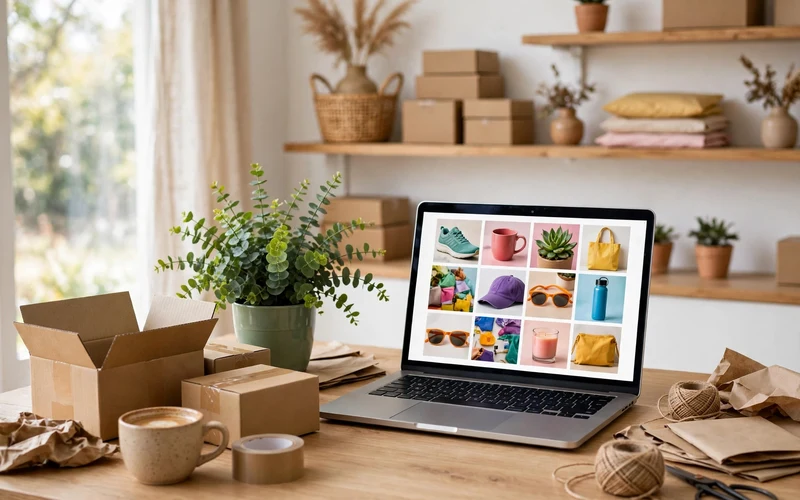
Shopify is a hosted online store platform. That means Shopify runs the website, the security, and the checkout for you. You do not buy separate hosting or install software. You sign up, pick a design, add products, and your store is ready to open.
Think of it like renting a ready-made shop instead of building one from bricks. The shelves and the till are already there. Your job is to choose what goes on the shelves, set fair prices, and bring people to the door.
Shopify works for many kinds of sellers: handmade goods, clothing, beauty products, digital downloads, and print on demand. You can sell in your own city or in other countries, and add more products and sales channels as you grow.
Step 1: Choose What to Sell
Every good store starts with a clear product. Do not try to sell everything. Pick one small group of products you understand and enjoy. Candles, handmade soap, phone cases, baby clothes, and digital planners are all good starting points.
Ask three questions first. Who will buy this, and why? Can you get it or make it at a fair cost? Is it easy to pack and post? Small, light products are cheaper to ship and easier to start with.
Check the idea before you spend money. Look at similar products on Etsy, Amazon, or Instagram, and read buyer reviews. If many people ask for a size or feature that no one offers, that gap can be your chance.
Step 2: Sign Up and Start Your Free Trial
Go to shopify.com and click “Start free trial.” You will need an email address and a store name. Shopify gives you a free trial of 3 days, and then your first 3 months cost $1 per month. After that, the Basic plan is listed at $29 per month on yearly billing. Check the pricing page before you sign up, because prices and offers can change.
During sign-up, Shopify asks a few short questions about what you sell. Answer them simply. You do not need a registered business to start building, and you do not need a credit card for the trial.
Once you are in, look around the dashboard. The menu on the left has Home, Orders, Products, Customers, and Settings. The Home page shows a setup checklist.
Step 3: Set Your Store Name, Currency, and Basic Settings
Go to Settings and fill in your store details. Add your store name, your contact email, and your address. Choose the currency your buyers will pay in. If you sell mainly in your own country, use your local currency. These details appear on invoices and receipts, so get them right early.
Next, set your store’s time zone and weight unit, and add a short store description. These small settings affect orders and shipping, so do not skip them.
If you already own a domain name, you can connect it later. If not, Shopify gives you a free address like yourstore.myshopify.com. You can buy a custom domain when you are ready to launch, usually for about $11 to $20 per year.
Step 4: Pick a Theme and Design Your Store
Your theme is how your store looks: the layout, colours, and fonts. New stores start with a free theme, and Shopify offers more than 20 free themes. Dawn is a popular free choice for beginners because it is clean and easy to change. Paid themes cost roughly $100 to $500 as a one-time purchase, but a free theme is fine for your first store.
Open Online Store, then Themes, and choose one that fits your products.
Then open the theme editor and make it yours. Add your logo, set your brand colours, and write a short welcome message. Add sections such as a featured product row and a simple footer. Keep the design clean. Check how the store looks on your phone, because most buyers will shop on mobile.
Step 5: Add Your Products
Go to Products, then Add product. For each item, add a clear title, a helpful description, good photos, a price, and how many you have in stock. Start with your best 5 to 10 products and add more later.
Good photos sell the product. Use clear, bright photos on a plain background, and show the product from two or three angles. Add one photo of the product in use if you can. Daylight near a window and a clean surface are enough.
Write descriptions that explain what the buyer gets. Do not only list sizes and materials. Say who it is for and why it is a good choice. Shopify Magic, the built-in AI tool, can draft a first version from a few details. Read it, fix any errors, and rewrite it in your own voice.
Set your price with care. Add up the product cost, packaging, and shipping, then add a margin for your time and profit. Organize products into collections, such as “New arrivals,” so buyers can browse easily.

Step 6: Set Up Payments, Shipping, and Taxes
To take money, turn on Shopify Payments in Settings, under Payments. It lets you accept cards directly in your store. On the Basic plan, card fees are around 2.9% plus 30 cents per online sale. You can also add PayPal. Check the current fees on Shopify’s pricing page, because they can differ by country.
Next, set up shipping. Go to Settings, then Shipping and delivery. Create shipping zones for the places you sell to, starting with your own country. Then set a rate for each zone: free shipping, a flat rate, or a rate based on weight. Free shipping over a set order value can encourage bigger orders.
For taxes, Shopify Tax can work out the right rate at checkout based on where you and your buyer are. Turn it on and check that it covers your region. If you are unsure about tax rules in your country, ask a local accountant before you launch.
Step 7: Add the Pages Buyers Trust, Then Test and Launch
Beyond product pages, every store needs a few trust pages. Add an About page, a Contact page, and clear shipping and returns pages that say how long delivery takes and what happens if a buyer wants a refund. Buyers read these pages before they trust a new store.
Now test everything. Place a test order and walk through the whole flow: add to cart, check out, and confirm the order email arrives. View the store on your phone, and read every page once more for typos and broken links.
When the tests pass, remove the password page in Online Store, under Preferences, and your store is live. Tell your first buyers and post the link on your social media. Launch is not the end. It is the start of learning what your buyers want.
How Much Does a Shopify Store Cost?
| Cost Item | Example Price | Notes |
|---|---|---|
| Free trial | $0 for 3 days | No card needed to start |
| First 3 months | $1 per month | Introductory offer |
| Basic plan | $29 per month | Yearly billing price |
| Custom domain | $11 to $20 per year | Optional, looks professional |
| Card fees | 2.9% + 30 cents | Per online sale on Basic |
Table note: prices are illustrative examples at the time of writing and can change; always check Shopify’s pricing page for the latest figures.
Your total start cost can be very low. With the trial, the $1 months, a domain, and a free theme, you can open a store for just a few dollars. Avoid paid apps and paid themes until you have real sales.
How to Get Your First Sales
Your first sales usually come from people you already know. Tell friends, family, and followers that your store is open. Share one product at a time with a clear photo and a link, not ten products in one post. Ask happy buyers to leave a review. A few honest reviews help new visitors trust your store.
Next, use social media where your buyers spend time. Post short videos of your products being made, packed, or used. One useful post a day beats ten sales posts that no one reads. Add your store link to your profile.
You can also try simple, low-cost marketing. Offer a small discount for first orders, such as 10% off, in the Discounts section. Add an email signup form and send a short welcome email. Do not spend on ads before your store, photos, and prices are ready.

Five Mistakes Beginners Make
The first mistake is launching with too many products. A shop with 100 unfinished listings looks worse than a shop with 10 great ones. Start small and add more only when the first ones sell.
The second mistake is weak photos. Dark or blurry photos lose sales before a buyer reads a word. Take photos in daylight, keep the background plain, and show the real product.
The third mistake is forgetting shipping costs. If shipping costs more than you planned, each order can lose money. Work out the full cost of packing and posting before you set prices.
The fourth mistake is adding too many apps. New sellers often install ten apps on day one. Most slow the store down and add monthly fees. Start with no paid apps, and add one only when you have a clear problem it solves.
The fifth mistake is ignoring the phone view. Most buyers shop on their phones. Check every page on your phone before launch, and fix anything that looks broken or hard to tap.
Conclusion
Starting a Shopify store is simple when you take it step by step. Choose one clear product, sign up for the trial, add great photos and honest descriptions, and test everything before you launch. Keep costs low and focus on your first buyers. Your first sale will teach you more than weeks of planning. Open your trial today and add your first product.
Frequently Asked Questions
How much does it cost to start a Shopify store?
You can start with the 3-day free trial, then pay $1 per month for the first 3 months. After that, the Basic plan is listed at $29 per month on yearly billing. A custom domain costs about $11 to $20 per year. Prices can change, so check the pricing page first.
Do I need coding skills to use Shopify?
No. Shopify is built for people with no technical background. You pick a theme, add products, and change colours and text with clicks. Coding is only needed for advanced changes.
How long does it take to build a Shopify store?
A basic store with a few products can be live in one weekend. A polished store with a full catalogue and trust pages usually takes one to two weeks.
Can I sell on Shopify without any stock?
Yes, with print on demand or digital products. With print on demand, a supplier prints and posts the product only when a buyer orders it, so you hold no stock. With digital products, buyers download the file after paying. Both need good product pages to sell.
What products sell best for beginners on Shopify?
Simple, light products with a clear buyer often work best: handmade candles, soap, jewellery, and digital downloads. The best product for you is one you understand, can photograph well, and can post at a fair cost.
Do I need a registered business to open a Shopify store?
No, you do not need a registered business just to build and open a store. But tax and business rules differ by country, and they may apply once you start selling. Check the rules in your country first.
Can I sell on Instagram and Facebook with Shopify?
Yes. You can connect Instagram, Facebook, and TikTok to your Shopify store and sell where your buyers already spend time.
How do I get my first order on Shopify?
Tell people you know, share one product at a time on social media, and make your store easy to trust with clear photos, prices, and policies. Most first orders come from friends, followers, or a social post, not from ads.






- Be Respectful
- Stay Relevant
- Stay Positive
- True Feedback
- Encourage Discussion
- Avoid Spamming
- No Fake News
- Don't Copy-Paste
- No Personal Attacks
- Be Respectful
- Stay Relevant
- Stay Positive
- True Feedback
- Encourage Discussion
- Avoid Spamming
- No Fake News
- Don't Copy-Paste
- No Personal Attacks
